

'/%3E%3C/svg%3E)
- August 11, 2026
- Posted by: Reza Kazemi
- Category: Forex Education

MetaTrader is to a forex trader what a scalpel is to a surgeon: the primary tool of the job. Almost every broker that accepts Iranian clients supports the platform, and if you intend to take trading seriously, working with it needs to become as natural as using your phone.
This tutorial assumes nothing and starts from zero: the difference between MetaTrader 4 and 5, downloading and installing on Windows and mobile, logging into an account, finding your way around the interface, placing your first trade with a stop loss and take profit, and the various order types. If terms like pip and lot are still unfamiliar, read the terminology section of the beginner’s guide first and then come back — everything will land faster that way.
What Is MetaTrader, and Why Did It Become the Industry Standard?
MetaTrader is a product of MetaQuotes. On one side it connects to your broker’s server and receives live prices; on the other it lets you analyse charts and place and manage trades. Version 4 (MT4) launched in 2005 and rapidly became the industry standard; version 5 (MT5) arrived in 2010 with a broader feature set. Both are free and run on Windows, Android and iOS.
The reason for its popularity is straightforward: an interface simple enough for a beginner, enough capability for a professional — indicators, automated expert advisors, strategy testing — and support from virtually every broker. One important point: MetaTrader is not a broker. It is only software. You obtain a trading account from a broker and log into MetaTrader using that broker’s credentials and server.
MetaTrader 4 or 5? Which Should You Install?
| Feature | MetaTrader 4 | MetaTrader 5 |
|---|---|---|
| Released | 2005 | 2010 |
| Timeframes | 9 | 21 |
| Pending order types | 4 | 6 (including Stop Limit) |
| Built-in economic calendar | No | Yes |
| Depth of market (DOM) | No | Yes |
| Default indicators | 30 | 38 |
| EA programming language | MQL4 | MQL5 |
| Speed and efficiency | Light, low resource use | Multi-threaded, faster backtesting |
| Best suited to | Beginners, and users of legacy EAs and indicators | Traders who want more timeframes and tools |
Practical recommendation: for a beginner the difference is minimal, and if your broker offers both, MT5 is the more forward-looking choice — MetaQuotes concentrates its development there. But if you rely on a specific indicator or EA that exists only in MQL4, install MT4. The good news is that the environment and logic are near-identical, so this tutorial applies to both.
Downloading and Installing MetaTrader
The most important point first: always download MetaTrader from your own broker’s official website, never from third-party sites. Two reasons. First, the broker’s build usually comes pre-configured with their servers, sparing you the setup. Second, MetaTrader installers hosted on unofficial sites are one of the most common malware vectors targeting traders.
Installing on Windows
- Go to the Platforms or Downloads section of your broker’s site and download the Windows build of MT4 or MT5.
- Run the installer and click through — installation takes under a minute.
- On launch, the account login window opens. That part is covered in full below.
Installing on Android and iPhone
- The official MetaTrader 4 and MetaTrader 5 apps are on Google Play and the App Store. The publisher must be MetaQuotes Ltd.
- If you cannot reach the stores, obtain the Android APK only from your broker’s official site or from metatrader4.com / metatrader5.com.
- The mobile version is excellent for monitoring the market and managing open trades, but do your actual analysis on a larger screen — desktop or web.
Web Version and Mac
If you cannot install anything, MetaTrader’s WebTrader runs inside the browser and most brokers link to it from the client area. Mac users can use the same web version, or a Mac build where the broker provides one.
Logging In: Login, Password and Choosing the Server
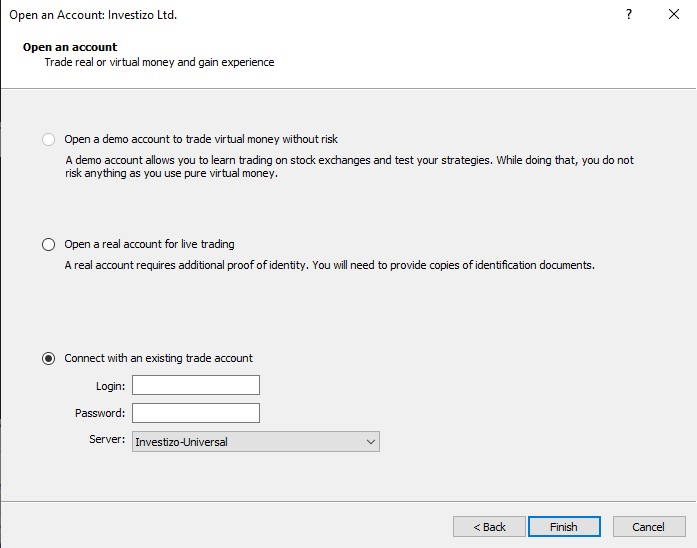
After opening an account — demo or live — you receive three things, usually by email:
- Login: your trading account number.
- Password: the main password for trading. There is also a second, “investor” password that grants view-only access — do not confuse them, and never give anyone your main password.
- Server: something like BrokerName-Demo or BrokerName-Live. Selecting the wrong server is the single most common cause of the “Invalid Account” error.
In MetaTrader, open the File menu and choose Login to Trade Account, enter the three items above, and if the connection succeeds you will see a ping figure and data volume in the bottom-right corner of the window. That means you are connected. If you do not have an account yet, you can open a free demo in a few minutes and practise alongside this tutorial — every step that follows can be done on demo without risk.
Finding Your Way Around: The Four Main Windows
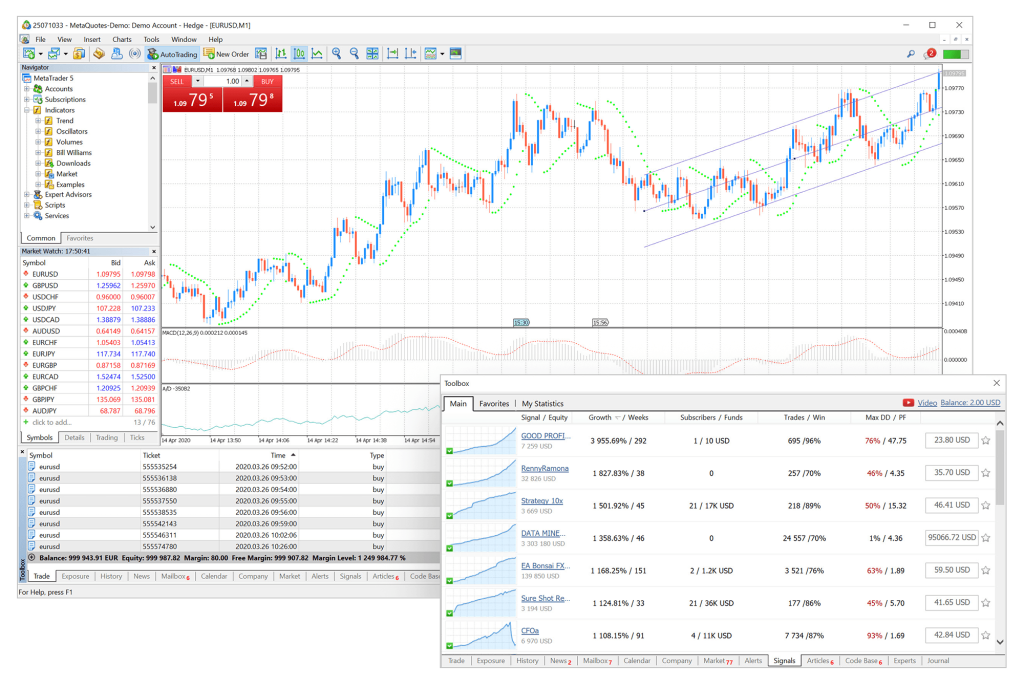
| Window | Shortcut | What it does |
|---|---|---|
| Market Watch | Ctrl+M | The instrument list with live Bid and Ask prices. Right-click and choose Show All to enable every symbol your broker offers |
| Navigator | Ctrl+N | Access to accounts, indicators and expert advisors. Drag any indicator onto a chart to apply it |
| Chart | — | The main analysis environment. Zoom with + and −, and change appearance settings with F8 |
| Terminal / Toolbox | Ctrl+T | Managing open trades (Trade tab), account history, alerts and the journal |
Three initial settings that make life easier:
- Candlestick charts: press Alt+2 to switch to candlesticks — some builds default to a simple line.
- Timeframe: select the period for each candle from the toolbar above the chart (M1 through MN). H1 and H4 are sensible starting points.
- One-Click Trading: Alt+T enables the quick buy/sell panel in the chart corner. For beginners we suggest leaving it off for now, so you do not place a trade by accident.
Placing Your First Trade, Step by Step
Suppose your analysis has led you to buy EUR/USD. The steps:
- Step 1: double-click EURUSD in Market Watch, or press F9, to open the New Order window.
- Step 2: enter your trade size in the Volume field. On a demo or small live account, start at 0.01 lots (a micro lot) — no more.
- Step 3: set Stop Loss and Take Profit right here. Example: buy at 1.0850 with a stop at 1.0820 (30 pips) and a target at 1.0910 (60 pips) — a risk-to-reward ratio of 1:2. Never place a trade without a stop loss. Not once.
- Step 4: press Buy (the Ask price) to go long, or Sell (the Bid price) to go short.
- Step 5: your open trade appears in the Terminal’s Trade tab, where you can watch the running profit or loss. To adjust the stop or target, right-click the trade and choose Modify; to close manually, choose Close.
If stop losses and sizing positions by percentage risk are new to you, read the risk management section of the beginner’s guide. That one section alone can save your account.
Order Types in MetaTrader
You do not always have to enter the market immediately. You can instruct MetaTrader to open a trade if price reaches a given level. These are called pending orders:
| Order type | Purpose | Example |
|---|---|---|
| Market order | Immediate entry at the current price | Buy EUR/USD right now at 1.0850 |
| Buy Limit | Buy at a price below the current one | Price is 1.0850; you want to buy on a pullback to 1.0800 |
| Sell Limit | Sell at a price above the current one | Price is 1.0850; you want to sell on a rally to 1.0900 |
| Buy Stop | Buy above the current price — a resistance break | If 1.0900 breaks, enter long |
| Sell Stop | Sell below the current price — a support break | If 1.0800 breaks, enter short |
| Buy/Sell Stop Limit (MT5 only) | Stop and limit combined, for a more precise entry after a break | After 1.0900 breaks, buy on the pullback to 1.0880 |
Adding Indicators and Customising Charts
- From Insert → Indicators, or the Navigator window, drop your chosen indicator — Moving Average or RSI, say — onto the chart, then set its period and colour in the settings dialog.
- Drawing tools (trendlines, horizontal levels, Fibonacci) sit in the toolbar at the top. For a price action trader, those are enough.
- Once the chart looks the way you want it, right-click → Template → Save Template, so you can apply it to any new instrument with one click.
- Custom indicators (ex4/ex5 or mq4/mq5 files) are added via File → Open Data Folder → MQL4/MQL5 → Indicators, and appear in the Navigator after restarting MetaTrader. A warning: only take indicators and EAs from reputable sources. Infected files circulate widely in Telegram channels.
Practical Notes for Iranian Traders
- Connection drops: if prices stop updating, check your internet connection first and the selected server second. Changing DNS or switching to the web version often resolves it.
- MetaTrader’s clock: the platform shows broker server time, not Tehran time. Keep the offset in mind when working with an economic calendar.
- VPS for automated trading: if you run an expert advisor, use a VPS rather than leaving a computer running permanently. Some brokers, Investizo among them, provide a free VPS to active traders.
- Security: never give your main account password to a “money manager” or “signal mentor”. If someone genuinely needs to view your trades, give them the investor (read-only) password.
Common Beginner Mistakes in MetaTrader
- Placing a trade with the wrong size — 1 lot instead of 0.01. Check the Volume field again before pressing Buy.
- Opening a position without a stop loss, intending to add one “later”. Later usually never arrives.
- Enabling One-Click Trading in the first days and placing trades unintentionally.
- Confusing the demo and live accounts. The active account is shown in the title bar and the Navigator — get into the habit of glancing at it before every trade.
- Installing every indicator and EA praised in a Telegram channel. It destroys both your security and your focus.
Frequently Asked Questions
Is MetaTrader free?
Yes, both version 4 and version 5 are entirely free, obtained through your broker’s site or the official app stores. Your cost in trading is the broker’s spread and commission, not the software.
Should a beginner start with MT4 or MT5?
For a beginner there is no meaningful difference and the logic is the same. If your broker offers both, MT5 is the more forward-looking choice thanks to more timeframes, a built-in economic calendar and MetaQuotes’ active development.
Why do I get an “Invalid Account” error when logging in?
In most cases you have either selected the wrong server — a Live server for a demo account, say — confused the main password with the investor password, or installed a version (MT4/MT5) that does not match the account type you opened. The exact login details are in your account opening email.
Can I trade using only a phone?
Yes. The mobile app has everything essential — placing and managing trades, charts, the main indicators — and many Iranian traders work exclusively from a phone. That said, a larger screen gives a better experience for detailed analysis.
How do I open a demo account in MetaTrader?
The simplest route is to open a demo through your broker’s website and log in with the details you receive, so that your demo and your future live account sit in the same environment.
Conclusion
MetaTrader is no more complicated than what you have just read: install from your broker’s site, log in with the correct credentials and server, learn the four main windows, and place a trade with a sensible size and a stop loss. What builds real competence is repetition — a week of daily work on a demo account will make this tutorial unnecessary.
The suggested path: open a demo account, place two or three practice trades today at 0.01 lots with a stop loss, and then move on to the next step — learning technical analysis.